

Imagine turning a single one-hour webinar into a week’s worth of high-performance content: bite-sized videos for every social platform, each perfectly captioned, formatted, and ready for engagement. That’s the payoff when you master repurposing webinars into social video clips with AI—the modern growth stack for marketers, creators, and business teams.
Why Repurpose Webinars into Social Clips?
Webinars are packed with insights, stories, and reactions. But most of the value sits locked away after the live event. Repurposing lets you:
- Reach wider audiences across TikTok, LinkedIn, Instagram Reels, and YouTube Shorts.
- Fuel your content calendar with minimal extra effort.
- Show up where your prospects already scroll—and meet their short attention spans.
- Test which moments and messages spark the most engagement using analytics.
Step 1: Plan for Clips Before You Hit Record
The best repurposing starts before your webinar even runs. Decide what types of clips drive your goals—for example:
- Product Demos: For sales enablement and top-funnel hype
- Audience Q&As: Builds credibility and addresses objections
- Expert Insights & Hot Takes: Creates shareable, viral-ready snippets
- Case Stories: Humanizes your brand
Share clip guidelines with speakers to help them flag moments in real time—many platforms (like Livestorm) even let hosts add highlight markers on the fly.
Record High-Quality, Flexible Sources
Whenever possible, use webinar platforms or recording setups that let you capture multiple tracks: separate audio for each speaker, plus slide and screen tracks. The cleaner your raw footage, the more ways you can re-cut for social later.
Step 2: Auto-Transcribe & Segment with AI
After your event, AI platforms auto-transcribe and segment your recording. This makes it instantly searchable by topic, speaker, or even sentiment. Tools like Reap.video and Vimeo AI scan your webinar and generate an interactive transcript with chapter markers—making it simple to jump directly to potential highlights.
- Pro Tip: Use segmentation to find standout moments fast—most one-hour webinars yield 8–15 social-ready clips (15–90s each).
- Watch Out: AI sometimes flags clips that are technically strong but lack emotional punch or brand nuance—always review before publishing!
Step 3: AI-Driven Clip Selection and Formatting
Modern AI tools suggest high-engagement moments by analyzing speaker tone, audience reactions, and quotable phrases:
- Livestorm AI Studio: Surfaces ‘best moments’ automatically for preview and export.
- TapVid.ai: Lets you preview quotable highlights, drag to adjust timelines, and instantly format for TikTok (vertical/tall), Instagram (square), or YouTube (horizontal).
- OpusClip: Specializes in converting wide webinar video to tall, TikTok-style snippets with color captions, engagement bars, and motion cropping to spotlight faces.
- Vimeo AI: Offers rapid multi-language subtitling and advanced dubbing to revoice your clips for global audiences.
This AI-first step saves you hours previously spent scrubbing through timelines for shareable soundbites.

Branding, Captions, and Platform Fitting
Every social network has its quirks. To maximize your reach:
- Add Burned-In Captions: Over 70% of mobile viewers watch with sound off; captions are non-negotiable for engagement. AI auto-captioning (as in TapVid.ai or OpusClip) streamlines this step.
- Embed Your Logo and Overlays: Build recognition and prevent content theft with brand elements on every asset.
- Format Each Clip for Destination:
– Vertical (9:16): TikTok, Reels, YT Shorts
– Square (1:1): Instagram Feed, LinkedIn
– Landscape (16:9): YouTube, Facebook
AI tools let you preview and bulk-export in all the right formats—no need for manual resizing or platform guesswork.
Step 4: Editorial Review & Scheduling
Human review is the backstop for context, emotion, and brand safety. Watch every AI-selected clip before scheduling. Ask:
- Is the message clear and contextually accurate?
- Does the tone fit your audience and brand personality?
- Are there any sensitive topics or awkward cuts to trim further?
Finalize and organize your clips. Dedicated tools such as RepurposeMyWebinar.com provide multi-channel previews, letting you see how each asset works as a whole campaign (video grids, podcast reel, quote graphics, newsletter embeds).
Schedule for multi-platform publishing at optimal times. Most tools integrate with platforms’ APIs, but manually staggering your posts (especially for LinkedIn and Instagram) can improve each channel’s traction.
Step 5: Publish and Measure What Works
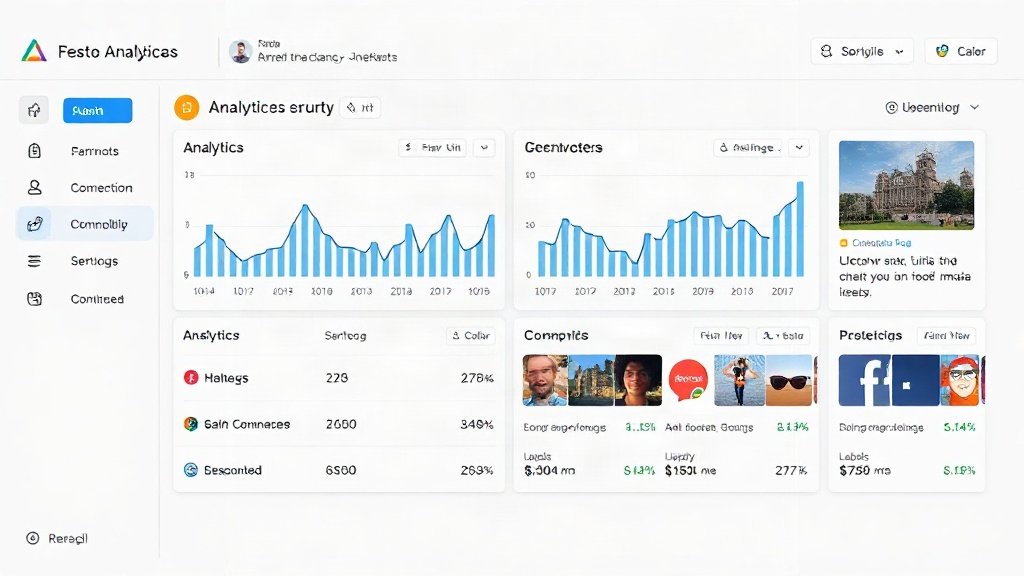
Hit publish and track engagement. Analytics dashboards (from the repurposing platform or native social tools) show:
- Playthrough rate and completion per clip
- Shares, likes, comments by platform and time
- CTA clicks or link traffic by asset
Use this data to refine your next webinar repurposing—double down on questions-answered or stories if they outperform demo clips, for example. Iteration is your friend.
Bonus: Multi-language, Dubbing, and AI-Powered Expansions
In 2026, the best tools go way beyond “chop and export”:
- AI Dubbing & Voice Cloning: Vimeo AI and others let you instantly generate versions of each clip in multiple languages—complete with brand-compliant synthetic voices.
- Multilingual Subtitling: Serve international markets with just a few clicks. Pro tip: Test with key personas before release to ensure translation context and tone hold up.
- Omni-format Campaigns: RepurposeMyWebinar.com and the latest video automation platforms now generate associated text, audio, and email assets from your transcript, driving traffic back to your video shorts.
AI Video Repurposing: Key Tool Picks (2026 Edition)
- Livestorm: Webinar-native, real-time highlight markers, brand overlays, and AI Studio for top clip selection.
- TapVid.ai: Intuitive multi-format editing with timeline and highlight previews, optimized for social clips.
- Vimeo AI: Multilingual subtitling, dubbing, and transcript-powered editing for global brands.
- Reap.video: Precise highlight suggestions and interactive transcripts for post-event editing.
- OpusClip: Outstanding for vertical/social conversion of standard webinar footage with top-tier captioning.
Vidquence is ideal for script-based or prompt-driven faceless video creation, and is a natural add-on for teams who want to extend webinar-derived insights into brand new, AI-generated video formats—with auto-publishing, voiceover, and subtitles built-in.
FAQ: Repurposing Webinars into Social Video Clips with AI
Q: How long should a social clip be for maximum engagement?
A: Aim for 30–60 seconds for TikTok/Instagram Reels and 60–90 seconds for LinkedIn/YouTube. Test your audience—attention spans change fast!
Q: What content segments work best for social video repurposing?
A: In most niches, audience Q&A, actionable tips, and strong opinion segments convert best. Product demos can work if you lead with the most visually engaging moment.
Q: How much human review is still needed after AI automation?
A: Always review before publishing. While AI gets you 80% there, editorial oversight ensures your clips are on-message, safe, and emotionally resonant.
Q: Can I automate publishing across all social platforms?
A: Most AI tools offer one-click publishing or API integration, but manual scheduling for each channel often results in better timing and organic reach.
Conclusion: Start Small, Repurpose Smart
With the right prep, AI tools, and a tight review step, you can multiply the reach and ROI of every webinar. Start by planning your content types, let AI do the heavy lifting on selection and formatting, and finish with human curation for quality. Whether you’re using advanced platforms like Livestorm, OpusClip, or leveraging Vidquence for brand-new AI-driven video assets, turning webinars into high-impact social content is one workflow you can’t afford to skip.