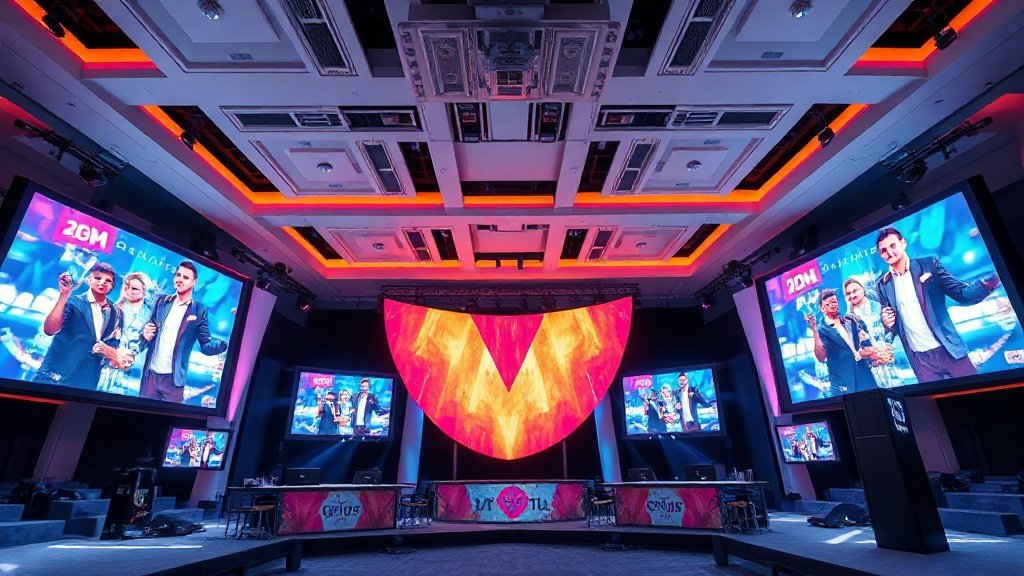
Promoting an event is no longer a guessing game or a drain on resources — thanks to AI video tools for event promotions. With a well-crafted, branded video, you can boost registrations, catch busy eyes on social media, and keep your message consistent everywhere from email to your event website. This step-by-step guide walks you through creating a promo video, from blank page to export, so you can launch your next event with confidence.
Step 1: Define the Video’s Purpose, Audience, and Key Details
Before you dive into scripts or templates, get clear on what you want your video to do. Are you selling tickets, announcing speakers, or raising awareness? Jot down:
- Event name and type (e.g., “FutureTech Summit 2026”)
- Date, time, and location (“August 7, 2026, Grandview Center”)
- Target audience (“startup founders, CXOs, students”)
- Highlight features (“Keynote by Dr. Lin, networking session, live demos”)
- Registration link or call to action (“Sign up at futuretechsummit.com”)
Example event brief:
FutureTech Summit 2026. Aug 7, Grandview Center. For founders, CXOs, tech students. Highlights: Speaker Dr. Lin, live demos, networking. Sign up at futuretechsummit.com
Step 2: Write a Concise Script or Prompt
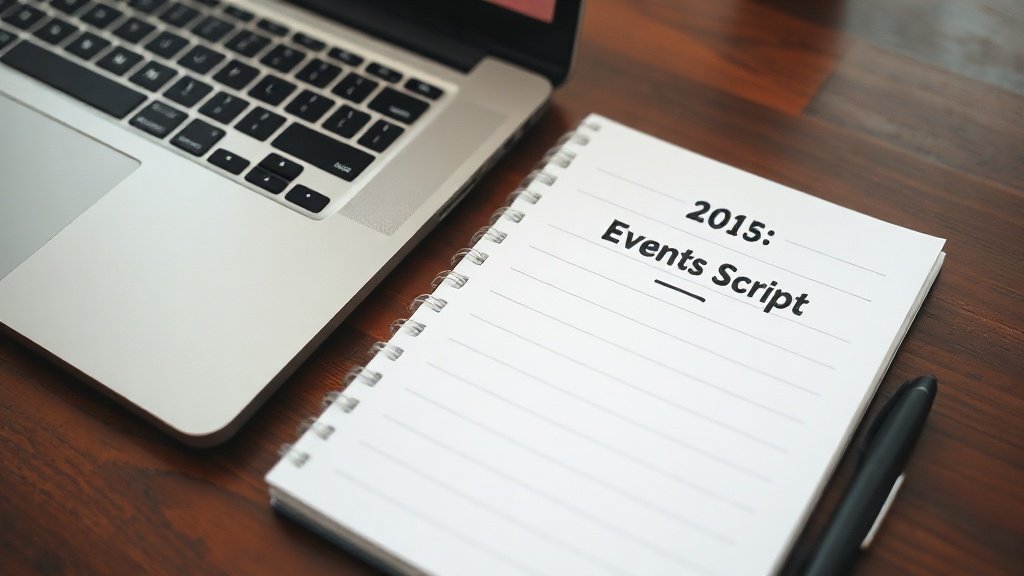
The heart of your video is the script or prompt you feed into your AI video tool. Keep it brief — around 40–70 words for a 15–30 second promo. Focus on the hook, the value, and action.
Example script:
Ready for the future of innovation? Join us at FutureTech Summit 2026, August 7th at Grandview Center. Hear from industry leader Dr. Lin, experience live demos, and connect with visionary peers. Reserve your spot now at futuretechsummit.com!
Step 3: Choose the Right AI Video Tool
Not all tools are made equal, so pick based on your style and needs. Here’s how leading AI video platforms fit into event promotions:
- CapCut: Browser/mobile editor with AI-powered scripting, generation, and full-featured video editing. Great for hands-on tinkering, with timeline, templates, and easy export for different platforms.
- HeyGen: Create polished promos using avatar presenters. Paste your script, pick a lifelike avatar or create your own, and personalize colors, logos, and backgrounds. No on-camera talent needed.
- Flixly: Ideal for fast, animated invitations. Enter your prompt, choose a style (Seedance 2.0 or Kling 3.0 for different motion vibes), and get a short, attention-grabbing animated clip to share everywhere.
Tip: For faceless, social-ready videos with captions and auto-publishing, tools like Vidquence help streamline the entire workflow from brief to publish.
Step 4: Generate the Video Base
Each tool approaches generation differently. Here’s how this step looks in practice:
- In CapCut, paste your script into the AI generator or use built-in templates. The tool will automatically propose scenes; you can adjust pacing, add animated titles, or modify visuals.
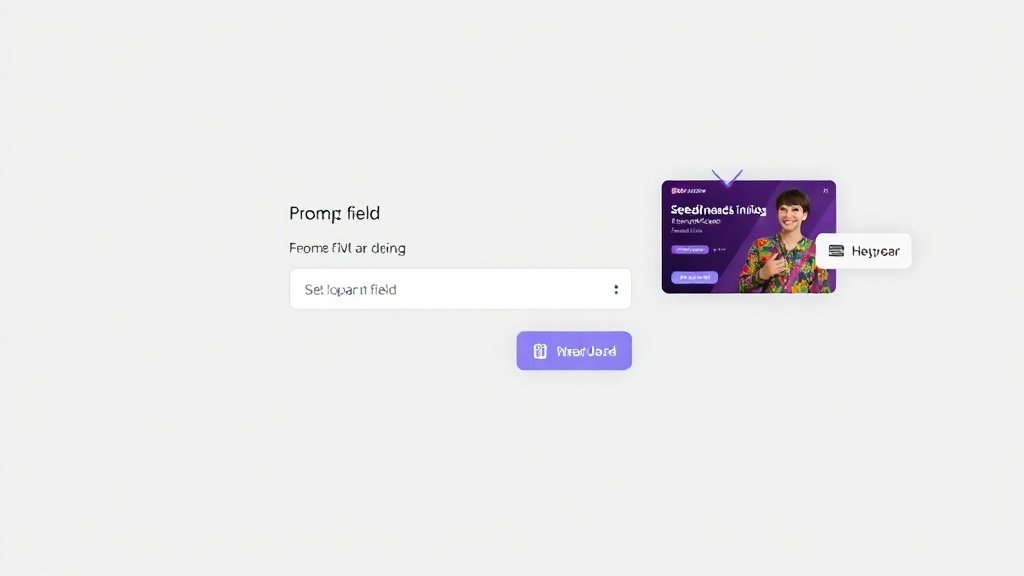
- In HeyGen, paste or generate your script, choose an avatar (such as a professional-looking MC or brand rep), customize with your event colors, and upload your event logo. You’ll see a preview of the avatar reading your promo.
- In Flixly, type a prompt (“Animated invitation for FutureTech Summit 2026, vibrant tech scenes”) and select Seedance 2.0 (stylized, upbeat) or Kling 3.0 (cinematic). The AI will generate an 8-second animated base clip. Add in your music track for extra appeal.
Step 5: Add Branding and Key Event Information
Your video must look and feel like your event. Checklist for event branding:
- Logo: Place it on the intro frame, lower-third, or end card
- Font & Colors: Use consistent brand fonts and color palette (most editors let you set these)
- Call-to-action: Add a button, overlay, or end slide that clearly states “Register at [website]”
- Essential Details: Remind viewers of date, time, and location within the video visuals
Pro tip: Show your logo on both the first and last frames, and always double-check accuracy of every date and link.
Step 6: Review, Refine, and Prepare for Publishing
Play back your video — is the pacing right? Are names, dates, and details correct? Edit transitions, timing, and audio for flow. In CapCut or Vidquence, you can fine-tune captions, background audio, and visuals with drag-and-drop ease. In HeyGen, revisit avatar tone and scene backgrounds. Flixly lets you swap out animations and adjust the upbeat music track.
Export your finished video in the aspect ratio and format you need — vertical for Instagram/TikTok, landscape for YouTube or your event site. Most platforms offer easy export options like MP4 and direct share to platforms.
Step 7: Share Across All Platforms
To get the most out of your promo:
- Social Media: Post to Instagram, TikTok, LinkedIn, and Facebook. Use hashtags and tag speakers or sponsors
- Email Newsletter: Embed the video or a clickable thumbnail into an email blast, linked to the event registration page
- Event Website: Add your video front-and-center on the homepage or a “Register Now” section
Data shows video in emails increases click-throughs by up to 300% (HubSpot, 2023). Branded event videos boost recall and engagement on social versus static posts.
Real-World Example: Rapid Promo with AI
Imagine promoting a “Summer Coding Bootcamp.” Instead of days spent on filming and editing:
- Draft a brief: Bootcamp, July 15, City Library, high school & college students, “Sign up now”
- Write: “Interested in coding? Join our Summer Bootcamp, July 15 at City Library. Learn hands-on skills and network with tech leaders. Limited seats! Register today.”
- Generate an animated invitation in Flixly using a vibrant, energetic prompt and select Seedance 2.0 for playful animations
- Add the bootcamp’s logo, use the school’s green color in titles, and finish with a big “Sign Up” CTA
- Export in vertical for TikTok/Instagram
- Embed the clip in an email newsletter and on the event homepage
All done in about 30 minutes — no camera crews, no advanced editing.
FAQ: AI Video Tools for Event Promotions
How do AI video tools help event promotion?
They automate editing, generate visuals and scripts, and enable fast, branded video production — saving hours of manual work and helping you quickly test multiple creative options.
What if I don’t have any video editing experience?
Platforms like CapCut and HeyGen are beginner-friendly; you input your script and get polished results with drag-and-drop edits or even AI avatars doing the talking for you.
Can I add captions or voiceover automatically?
Yes! Most modern AI video platforms (including Vidquence) auto-generate captions and professional voiceovers as part of the video creation process — all in your chosen style or language.
Will my event videos look generic if everyone uses AI?
Only if you skip branding. By uploading your logo, using your colors, personalizing scripts, and highlighting unique event details, you create videos that stand out and feel authentic.
Conclusion: Accelerate Event Success with AI Video
With AI video tools, you can turn a simple event brief into an eye-catching video promo in under an hour — no pro skills required. Whether you want lively animation, a human avatar, or hands-on editing, pick the tool that fits your vibe and campaign goals. Add sharp branding, always double-check details, and get your videos in front of your audience everywhere they look. Event marketing just got a major upgrade — and if you need to go from script or URL to pro finished videos at scale, tools like Vidquence make it even easier.