

If you think making a talking-head explainer video means hiring a studio or mastering tricky camera work, think again. Today’s AI video platforms let you turn a script—or even a short prompt—into polished presenter videos complete with lifelike avatars and natural voiceovers, all without stepping foot in front of a camera. Here’s how you (or your brand) can produce compelling talking-head explainer videos with AI, from script to screen, no studio needed.
Why Use AI for Talking-Head Explainer Videos?
Traditionally, producing an explainer meant booking studio time, hiring talent, and editing footage—a process that could take weeks and cost thousands. AI talking-head tools, like Synthesia, D-ID, and HeyGen, flip the script. Now, anyone can:
- Create videos on demand—no filming gear or green screen required
- Choose a polished digital presenter—stock or custom—aligned to your brand
- Output videos in dozens of languages, with natural-sounding voices
- Edit scripts and instantly update videos without a reshoot
This makes AI video creation the fastest route for startups, educators, marketers, or small teams aiming to explain, educate, or onboard with a human touch—minus the logistical headaches.
Understanding AI Talking-Head Video Tools
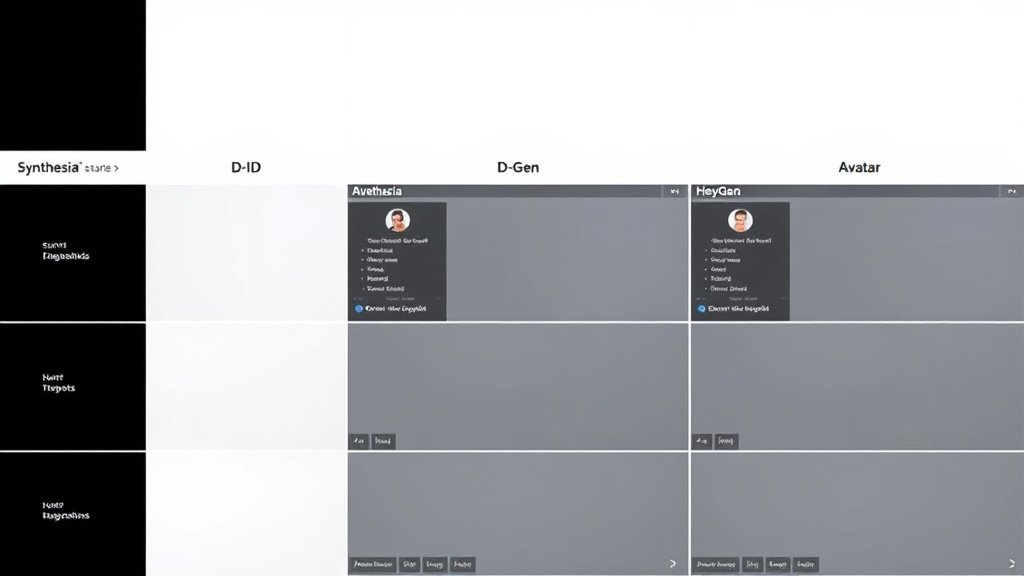
The AI tools leading this space each offer slightly different takes on explainer video creation:
- Synthesia: Founded by Victor Riparbelli and Steffen Tjerrild in 2017, known for high-quality digital avatars, text-to-video workflows, corporate-friendly layouts, and easy multilingual support.
- D-ID: Gil Perry, Sella Blondheim, and Eliran Kuta founded D-ID in 2017, initially focusing on animating still photos into speaking faces. Their Creative Reality Studio enables talking-heads from a single photograph plus a script.
- HeyGen: Launched in 2022, HeyGen lets you generate explainer videos by typing in a script and choosing from a range of pre-made human avatars (or sometimes custom ones), with extensive voice/language options.
All three allow rapid production: input text, select a presenter, choose a background, generate, then download.
Step-by-Step: How to Make Talking-Head Explainer Videos With AI
1. Write Your Script (or Outline)
Your video’s clarity depends on sharp scripting. Aim for:
- Short, clear sentences (it helps with pacing and lip sync)
- Conversational tone (avoid jargon—AI voices sound best with natural text)
- 80–150 words per video minute (ideal for snappy explainers)
If you’re new to scripting, use a prompt like: “Explain how our SaaS helps small businesses save time in less than 120 words.”
2. Choose Your AI Platform
- For pre-built avatars and quick corporate explainers: Try Synthesia or HeyGen.
- For animating a specific photograph: D-ID’s Creative Reality Studio is purpose-built.
- If you want full video storytelling from script/URL, plus voice and captions: Vidquence automates explainer video production, including talking-head formats among others.
Most offer trials or free tiers—test with a short video before committing.
3. Select or Upload a Digital Presenter
You can pick from a library (standard and premium avatars with diverse looks), or, on some platforms, upload a photo of a real person to generate a digital double (be sure you have rights/consent).
- Stock avatars: Ideal for generic, brand-neutral presentations.
- Custom avatars or animated images: For a personal touch or executive/internal comms.
Most platforms let you preview how each avatar will perform with your script.

4. Customize Voice, Language, and Background
This is where AI tools shine:
- Select voice: Male/female, accent, energy—try several before choosing.
- Choose language: Many tools let you generate versions in 50+ languages. For example, you could create English, Spanish, and Japanese explainers from the same script—no translation budgets, no re-filming.
- Set the background: Basic tools offer virtual office/white backdrops; advanced ones let you upload branded graphics or use pre-set “studio” scenes.
Some platforms allow background changes after generation and let you download the presenter on a transparent layer for use in your own video edits.
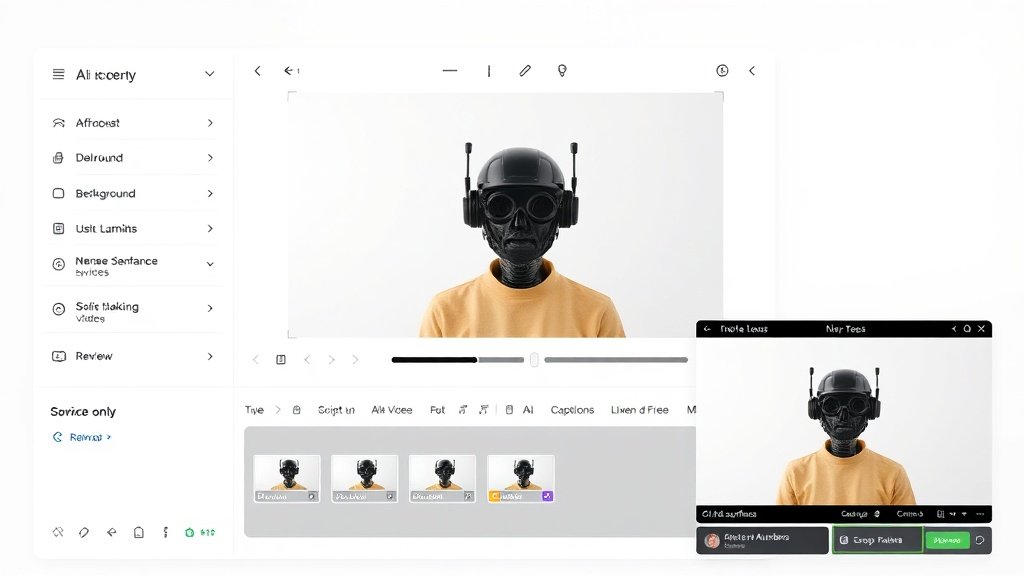
5. Review, Edit, and Fine-Tune
Generated videos aren’t always perfect out of the box. Watch for:
- Mispronunciations, especially with brand names or jargon (sometimes you can add phonetic spellings)
- Awkward pauses or rushed delivery (edit script or adjust pacing settings)
- Lip sync errors (rephrase sentences for better alignment)
- Background mismatches (swap in a more fitting virtual backdrop)
Quick tip: Always preview the video before downloading or publishing. Small tweaks to the script or presenter can dramatically improve the result.
6. Publish and Repurpose
Once you’re satisfied:
- Download your MP4 and upload to YouTube, LinkedIn, your website, or LMS platform
- Leverage multilingual versions to reach diverse markets without new shoots
- Cut segments for shorts, FAQ clips, or onboarding modules
Some tools (including Vidquence) can auto-publish finished videos to YouTube and other platforms—and even add captions, voiceover, and multiple formats automatically.
AI Talking-Head Explainer Videos: What Quality Can You Expect?
Modern digital presenters are uncannily realistic—though occasional “uncanny valley” moments (slight oddness in gesture or blink rates) still happen. Here are some tips for maximum quality:
- Pick avatars that match your brand/audience—avoid overly “robotic” or bland options
- Use HD or high-res images (if uploading a custom face) for best results
- Keep scripts sharp and sentences short for natural pacing
Run a quick test segment if you’re targeting a high-stakes audience (investors, major clients). For most explainer content, viewers are much more interested in clarity and information than the presenter’s “soulfulness.” Research shows that AI-generated talking-heads, when well-produced, have viewer retention within 8-15% of traditional filmed explainers, while slashing costs by 75-90% (HubSpot 2023 study; internal brand case studies).
AI Explainers in Action: Concrete Workflow Example
- Sara (HR manager) needs to onboard remote employees across five countries.
- She writes a simple script: “Welcome! Here’s how to get started…” (110 words)
- Uploads her own headshot to D-ID’s Studio, pastes her text, selects Spanish and English
- Generates two talking-head videos, each with her digital likeness and matching voice/accent
- Reviews and tweaks pronunciations, fixes one awkward background, downloads final MP4s
- Publishes to her company’s LMS—zero camera time, $30 in credits used
Process time: under 25 minutes. Compare that to hours (or days) with studio production.
FAQ: Talking-Head Explainer Videos With AI
- Q: Can I use my own face as the presenter?
A: Yes, D-ID and some other tools let you upload a photo (with permission) to create a digital presenter. Always check the platform’s terms and privacy rules. - Q: How do I make explainers in different languages?
A: Most platforms support script input in 50+ languages and provide matching voices. Simply paste your text, select the target language and voice, and generate—no additional filming needed. - Q: Are AI talking-head videos suitable for YouTube monetization?
A: Yes, as long as the content is original and meets YouTube’s policies. Channels using AI presenters are accepted, especially for educational, explainer, or software demo formats. - Q: Where does Vidquence fit into this?
A: Vidquence automates the whole video workflow—generate talking-head explainers (and more) from a prompt or script, with built-in voiceover, captions, and instant YouTube/social publishing. It’s ideal if you want presenter video content plus other video styles from one tool.
Final Takeaway: No Studio? No Problem
You don’t need lights, cameras, or a team of editors to make professional talking-head explainer videos—just a good script and a modern AI platform. Tools like Synthesia, D-ID, HeyGen, and Vidquence put video creation within reach for creators, marketers, and brands everywhere. Start with free trials, script clearly, and test output before you send your explainer to the world—you’ll be surprised how realistic, engaging, and scalable your video content can be.