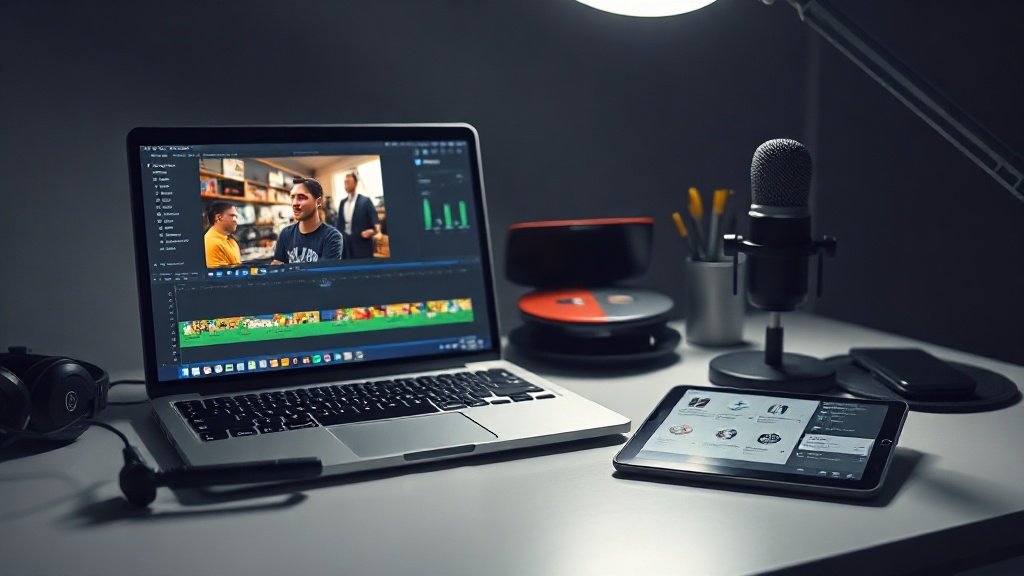
Whether you’re producing explainer content, faceless YouTube videos, or engaging educational shorts, a streamlined workflow for generating voiceover videos with AI saves hours and sharpens your final product. In this guide, you’ll get a hands-on, stage-by-stage process—from AI-powered scriptwriting to assembling visuals, polishing captions, and exporting for your platform of choice.
Step 1: Script Research and Writing—Supercharged by AI
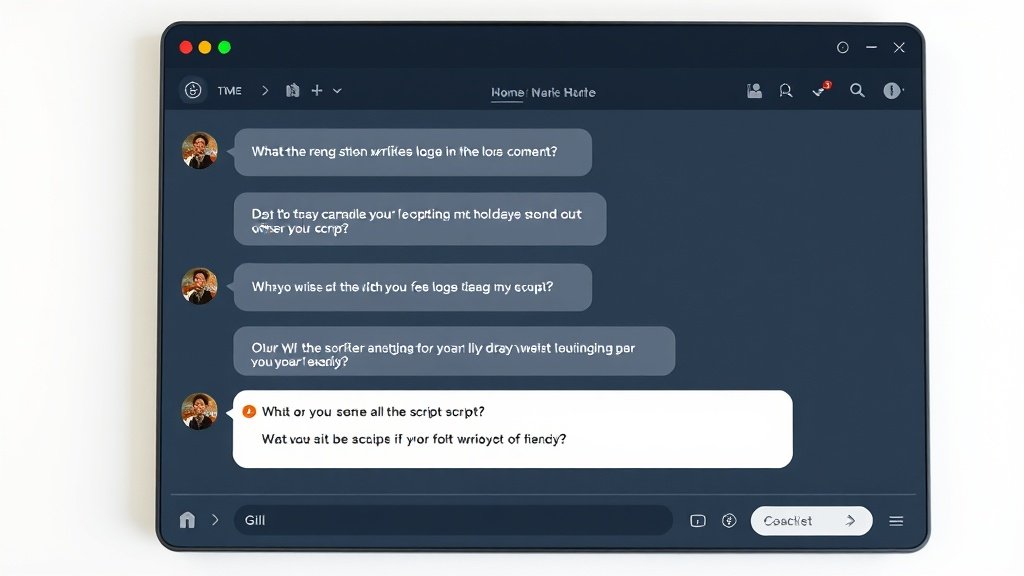
Your voiceover video’s backbone is a solid script. Traditionally, this stage could eat up days—especially when you’re ideating, outlining, and writing from scratch, or needing to fact-check in detail. With a large language model (LLM) like ChatGPT, Claude, or Gemini, you can:
- Input your topic, rough outline, or existing article/URL to quickly produce a first-draft narration
- Get alternate headlines, introductions, or closing calls to action
- Iterate on voice and tone (“Make it friendlier,” “Cut down to 200 words”)
For example: Paste your blog’s outline into a chat AI, prompt it for, “Turn this outline into a 60-second video script for small business viewers, with a motivating call to action.” You’ll often get a structured narration you can polish for clarity and pacing.
But don’t skip human review! Especially for brand-safe or factual content, double-check AI-suggested claims, terminology, and cited sources. Even auto-generated segments can introduce awkward phrasing or wrong details—a quick edit pays off.
Step 2: Generate AI Voiceover—Test, Adjust, Finalize
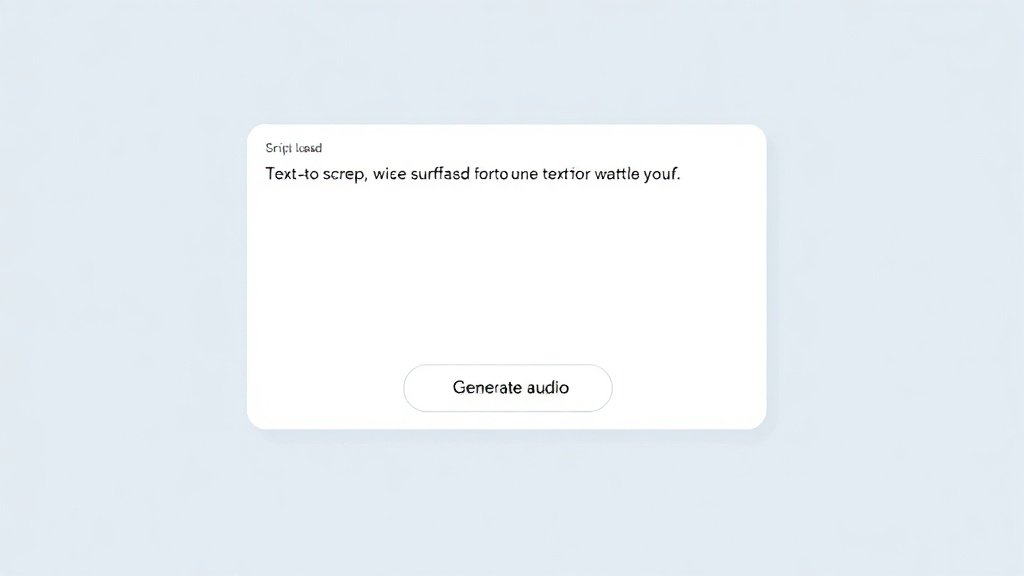
Once your script feels tight, it’s time for the narration. Here’s where text-to-speech (TTS) AI voice generators shine. Platforms like ElevenLabs, Murf, or WellSaid give you options to:
- Paste in your narration text
- Preview dozens of voices (male/female, accents, warm or energetic, natural vs. “news anchor”)
- Tweak speed, inflection, emphasis, and pauses
- Export high-quality WAV or MP3 narration
The ability to quickly test multiple voices is more than just novelty—you can match tone to your audience or try different options for A/B testing. Creators targeting an international market can even swap in regional accents or languages for rapid localization.
If your video will include a musical background, keep your narration slightly slower and clearer; dense speech plus music makes comprehension suffer.
Step 3: Visual Assembly—Footage, Images, Motion, B-Roll
With your voice track ready, you’re set to build the visual backbone of your AI voiceover video. Most workflows (including pros using Final Cut Pro or Premiere) build visuals around the narration timing—so every cut, pan, or overlay matches keywords and energy in the script.
There are two big options here:
- Manual assembly: Import your voiceover into a video editor (Final Cut Pro, CapCut, or Premiere).
- AI-accelerated tools like Vidquence: Upload or paste your narration, then auto-generate a sequence of stock clips, motion backgrounds, and timed visuals in one go—great for quick faceless videos or social shorts.
When assembling visuals manually, here’s a proven process:
- Slice your voiceover into beats—each major statement or idea.
- For each beat, search a stock media library (think Pexels, Shutterstock, or your editor’s built-in library) matching the concept. Example: for “Research your competitors,” use quick scenes of laptops, analytics dashboards, or pie charts.
- Add motion graphics and icons to reinforce stats, acronyms, or timelines. Canva and LottieFiles offer plug-and-play assets.
- Use text overlays for key phrases or numbers. Orientation matters—horizontal for YouTube, vertical for Instagram Reels or TikTok.
- Break up scenes visually every 3–7 seconds to keep engagement high. Fast-paced visual changes are proven to reduce drop-off (social shorts often use 2–3 sec cuts, according to Vidyard’s benchmark studies).
Pro tip: Save commonly reused assets (logos, intro animations, graphics) for easy drag-and-drop in future projects.
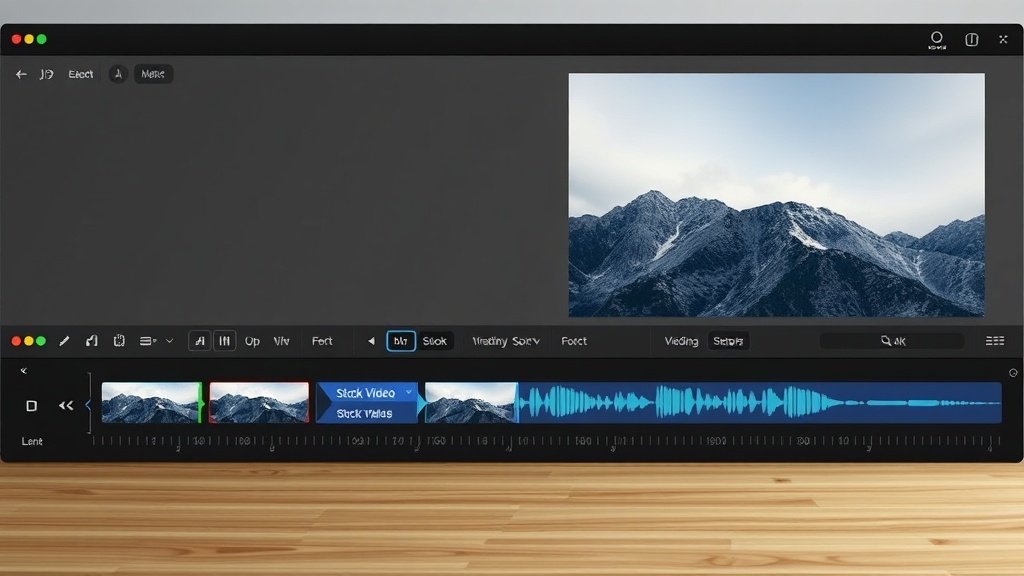
Step 4: Auto-Generate and Polish Subtitles
Captions unlock accessibility, boost watch-time, and are now essential for all platforms (shorts and TikTok, especially). Most AI video and editing platforms have an automatic subtitle generator—just import your finished narration, and they’ll transcribe it with word-level timing.
But the auto version is only 80–90% of the way there:
- Spot-check for misheard words, incorrect brand names, or odd phrasing (especially with technical terms).
- Adjust line breaks so that each caption chunk feels snappy—not a wall of text.
- Add punctuation and correct capitalization for readability.
Modern editors like Final Cut Pro, CapCut, and Descript all allow you to drag and resize caption blocks right over your videos, making fine-tuning visual and quick.
Step 5: Final Edit—Sound, Sync, and Export
You’re nearly done. Professional finishing touches make the difference:
- Volume balancing: Make sure the narration is consistently audible and not drowned by music. -12 to -6 dB for voiceover, -24 to -18 dB for background music is a safe starting point.
- Timing checks: Scan for awkward pauses or rushed delivery—slide visuals or trim audio as needed.
- Subtitle sync: Confirm every caption matches the relevant speech, especially fast dialogue or complex terms.
- Platform prep: Re-export in various aspect ratios for YouTube (16:9) and TikTok/Reels (9:16). Add or burn-in captions for mobile platforms that auto-mute videos.
Export settings depend on your destination, but H.264 MP4 is universally accepted; for broadcast or archival, a higher-bitrate ProRes export is preferred (and easy with Final Cut Pro or Vidquence).
Why Use an End-to-End Platform?
If you want to get from idea to finished video in minutes (not hours), a platform like Vidquence can combine script automation, AI voiceover, stock media sourcing, and auto-captioning in a single workspace. This significantly cuts down on the friction between AI tools—and lets non-editors or small teams deliver consistent results at scale.
Example: From Script to Upload in 20 Minutes
A creator with a three-minute script can use Vidquence to:
- Paste in the narration, select an AI voice, and generate the audio
- Auto-match visuals to narration beats using a built-in stock library
- Auto-generate and tweak subtitles
- Export (or auto-publish) the final video to YouTube or social platforms in formatted ratios
This kind of automation isn’t just about speed—it lets you rapidly iterate, test new formats, and leverage AI strengths without being bogged down by repetitive technical steps.
FAQ: Workflow for AI Voiceover Videos
Can I use my own recorded voice instead of AI?
Absolutely. Many creators prefer to record their own voice, then upload it to the same workflow (manual or AI-assisted). AI voice distinguishes itself with speed, consistency, and the ability to quickly redo takes or voice styles.
How accurate are AI-generated subtitles?
Most modern subtitle generators (including those in Final Cut Pro or Vidquence) achieve roughly 85–95% accuracy, but always proofread for names, terminology, and line breaks—especially in specialized content.
Which editor is best for AI voiceover videos?
If you want manual, professional control, Final Cut Pro is a top choice among Apple users for its interface and export power. For fast, automated workflows, all-in-one tools like Vidquence save huge amounts of time while delivering consistently polished results.
Is it possible to automate repurposing videos for multiple platforms?
Yes! Vidquence and similar AI platforms can auto-generate versions of your video in different aspect ratios and durations for YouTube, TikTok, or Instagram—often in a single export workflow.
Conclusion: Your AI Voiceover Workflow—Repeatable and Scalable
Generating effective voiceover videos with AI is no longer a technical marathon. By plugging in large language models for scriptwriting, using advanced TTS for narration, leveraging stock media libraries, and polishing with AI captioning and editing tools, you can produce professional, shareable content on any budget—or scale it across multiple platforms and formats like ABS-CBN does for global audiences. Start with the workflow here, experiment with automation, and see what fits your brand best. Your next AI-powered video is minutes away.