
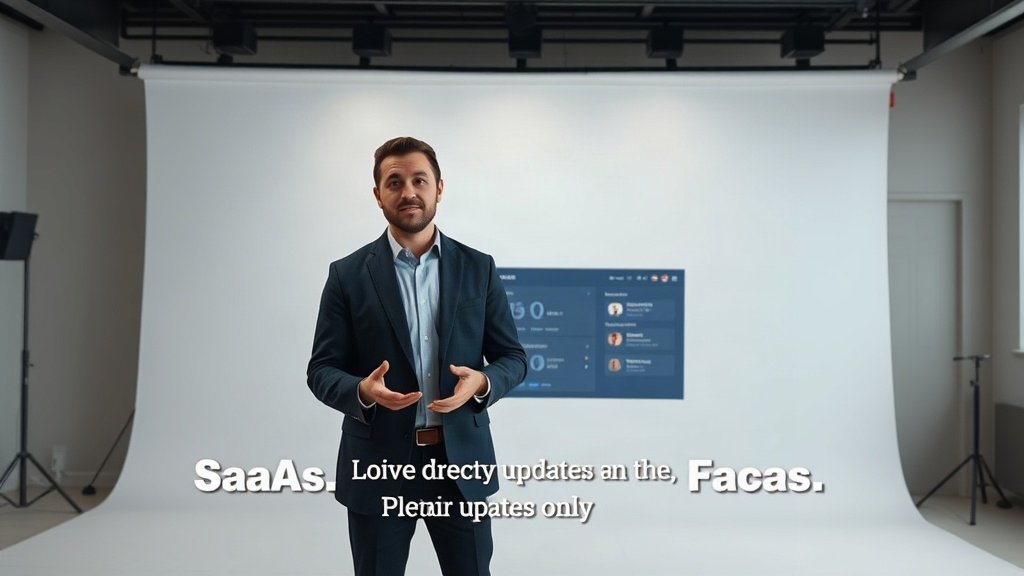
If you want your SaaS product updates to stand out and actually be absorbed—even by users scrolling with the sound off—captioned talking-head videos are the sweet spot. In this step-by-step guide, you’ll learn the precise workflow for producing engaging, accessible captioned talking-head SaaS announcements, with real-world tips and tools that keep things clear and professional.
Why Captioned Talking-Head Videos Win for SaaS Announcements
SaaS users are bombarded with updates. A clear talking-head video puts a human face to your message, keeping it personal and direct. Add concise captions, and your key points land even when viewers are skimming, multitasking, or have the audio muted.
- Accessibility: Captions help all users, including those with hearing impairments or watching in noisy environments.
- Engagement: Viewers are more likely to watch—and finish—videos with captions. LinkedIn found that captioned videos increase view time by 12% on average.
- Retention: Summarized information in captions boosts recall, particularly helpful for features or release notes.
Step 1: Define Your Announcement and Outline Key Messages
Start with clarity. What exactly are you announcing—new features, UI updates, integrations, or release notes? Write a crisp script or at least bullet out your main points. Avoid technical overload; focus each video on 1–3 core updates.
- Example: Launching a new analytics dashboard? Announce the dashboard first, explain its main benefits in a sentence or two, then highlight how to access it.
- Tip: Keep your script under 90 seconds for product update videos—a sweet spot for social and in-app channels.
Step 2: Set Up for an Effective Talking-Head Recording
Video quality matters—your audience should focus on your message, not bad lighting or clutter. Here’s how to set up:
- Camera: A full HD webcam, phone, or DSLR works. Position it at eye level for natural engagement.
- Lighting: Natural light or a ring light is ideal. Avoid strong backlighting (e.g., windows behind you).
- Background: Stick to clean, neutral spaces. A company logo on the wall or a blurred dashboard screenshot can add subtle branding.
- Sound: Use a lapel mic or headset if possible. Test for echoes or background noise before recording.
If you’re on a budget, apps like OBS Studio let you record both webcam and computer screen (for demoing features live) in one take.
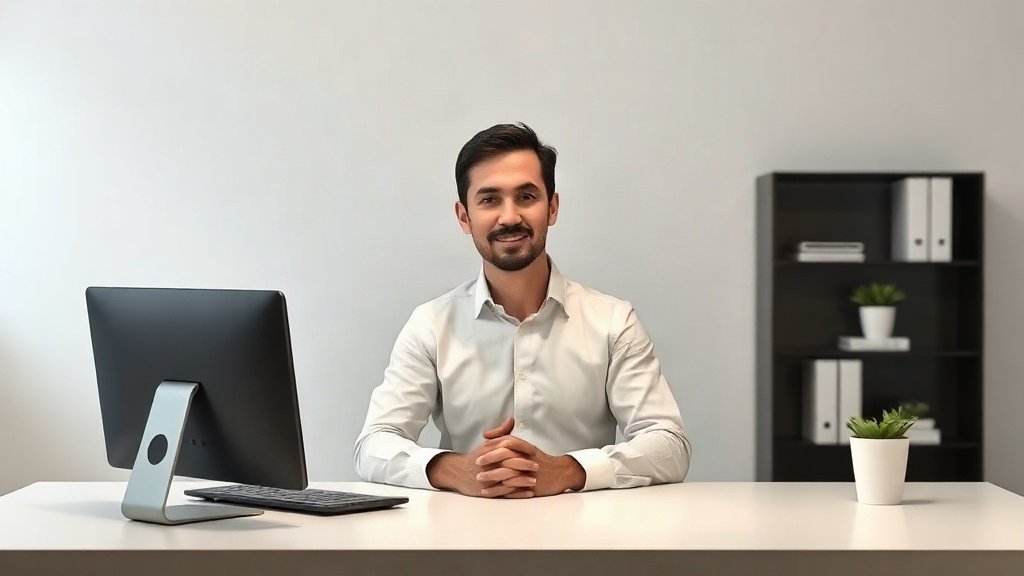
Step 3: Record With Confidence
Take a quick test shot—watch it back and check:
- Are your face and eyes clearly visible?
- Is the audio crisp, without distracting noises?
- Is your main message coming through in the first 10 seconds?
Speak conversationally. It’s fine to reference your script, but avoid reading line-by-line. If you stumble, pause and try the sentence again—you’ll edit out mistakes later.
Step 4: Add and Polish Captions
This is where good updates become great. While some editors auto-generate captions, always check for accuracy—industry terms and product names are often mangled by AI.
Manual vs Auto-Generated Captions
- Auto: Tools like Adobe Premiere Pro, CapCut, or Final Cut Pro can transcribe and drop in captions. Fast, but needs cleaning up.
- Manual: Typing captions yourself (or hiring a human editor) guarantees accuracy, but takes more time.
Tips for Effective Captions:
- Use large, readable fonts (sans-serif, 60+pt for HD video).
- Place captions in the lower third, above graphics/logos for clarity.
- Stick to 1–2 lines at a time. Break long sentences.
- Choose colors with strong contrast; add a shadow or semi-opaque background for legibility.
- Edit for concise language—don’t simply transcribe word-for-word if it’s rambling.
If you’re seeking a streamlined workflow, Vidquence lets you upload your talking-head recording and add accurate, styled captions automatically while previewing the exact look of the finished video—with direct export options for web or social formats.
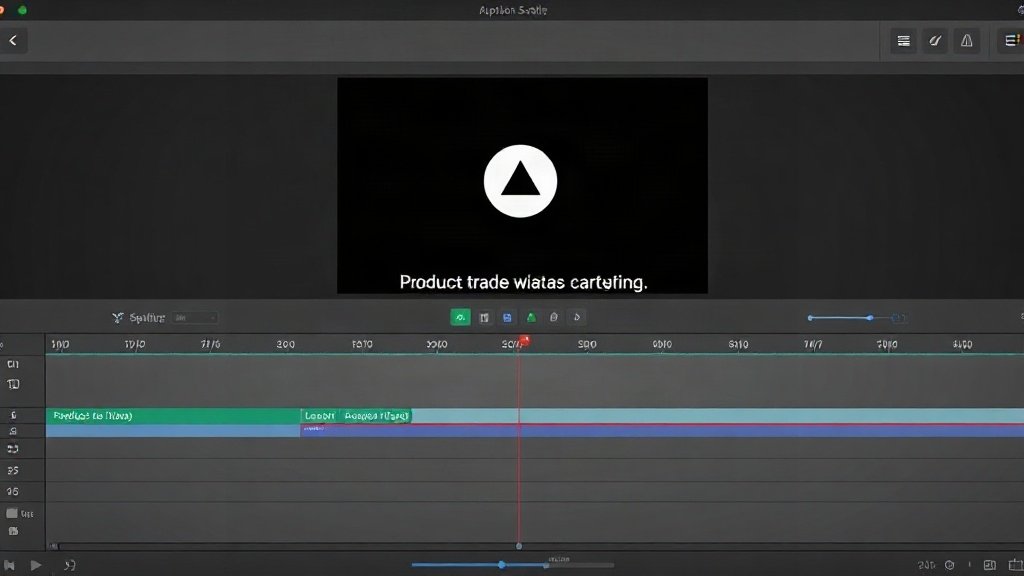
Step 5: Add Brand Elements and Visual Reinforcement
Boost trust and recognition by integrating your SaaS product’s visuals:
- Add your product logo unobtrusively in a corner.
- Use brand colors for caption backgrounds or titles.
- Overlay quick screenshots or UI cards to visually highlight new features as you mention them. Simple cutaway shots or small slide-ins work well.
Keep it subtle—branding should support the message, not overpower it.
Step 6: Export and Prepare for Different Platforms
Now your video is ready to ship. Export settings depend on where you’ll publish:
- Website or in-app: Use landscape (16:9), MP4, 1080p.
- LinkedIn, Facebook, Twitter: Square (1:1) or vertical (4:5/9:16) perform better in feeds.
Always preview captions on a phone to verify readability, as most viewers will be on mobile. Vidquence offers resize and auto-publishing features for consistent, fuss-free delivery across platforms.
Checklist: Bringing It All Together
- Draft a clear, short script focused on key SaaS updates.
- Set up camera, lighting, background, and audio for a distraction-free shot.
- Record a talking-head video, keeping energy high and delivery natural.
- Add and polish captions for clarity, accuracy, and brand style.
- Integrate product visuals or screenshots as overlays.
- Export in the right format and check legibility (especially on phones).
FAQ: Captioned Talking-Head SaaS Announcements
Do I need expensive gear to create these videos?
No. A modern smartphone and a ring light can deliver pro-level talking-head footage. Prioritize good audio and simple backgrounds over fancy cameras.
Should I auto-generate captions or type them?
Auto is fast, but always review and edit—they often mishandle product or feature names. Manual editing, or at least careful review, keeps your message professional and clear.
What’s the best length for a SaaS update video?
Aim for 60–90 seconds. If updates are complex, create a brief overview, then deep-dive videos for each major change.
How can I add product screenshots or UI cards?
Most editing tools let you insert overlays or cutaways. Prepare high-res images and add them as b-roll or pop-ups alongside your talking-head for visual reinforcement.
Conclusion: Clarity, Speed, and Accessibility Drive Better SaaS Videos
With the right process—clear scripting, good setup, polished captions, and smart brand visuals—you’ll upgrade your SaaS announcements from overlooked release notes to truly engaging updates. Captioned talking-head videos are accessible, memorable, and repeatable. Use tools that streamline captioning and multi-platform export, like Vidquence, to make this workflow sustainable as your SaaS evolves.