
Here’s how successful creators and marketers multiply their video output for social media—without burning out or sacrificing brand quality: Batch producing social media videos with Vidquence, the AI-powered platform built for high-volume video creation. This guide breaks down, step by step, a strategy that can help you roll out a week or even a month’s worth of polished videos in a fraction of the usual time.
Why Batch Producing Social Media Videos Beats the Old Way
Creating videos one at a time is a productivity trap. You start from scratch for each asset, hop between script docs, design tools, voiceover apps, and video editors—hours disappear for every video. Batch production flips this script completely:
- Fewer context switches: Prep several videos in one focused session instead of resetting your brain each time.
- Consistent branding: Systematic templates mean your voice and visuals stay on-message.
- Massive time savings: Most companies see a 30–50% reduction in production time per video after moving to batch workflows (source: InVideo, HubSpot video benchmarks).
But most workflows require juggling a patchwork of tools and file versions. That’s where Vidquence shines—a unified dashboard for every step, from idea to export. Let’s break down the workflow.
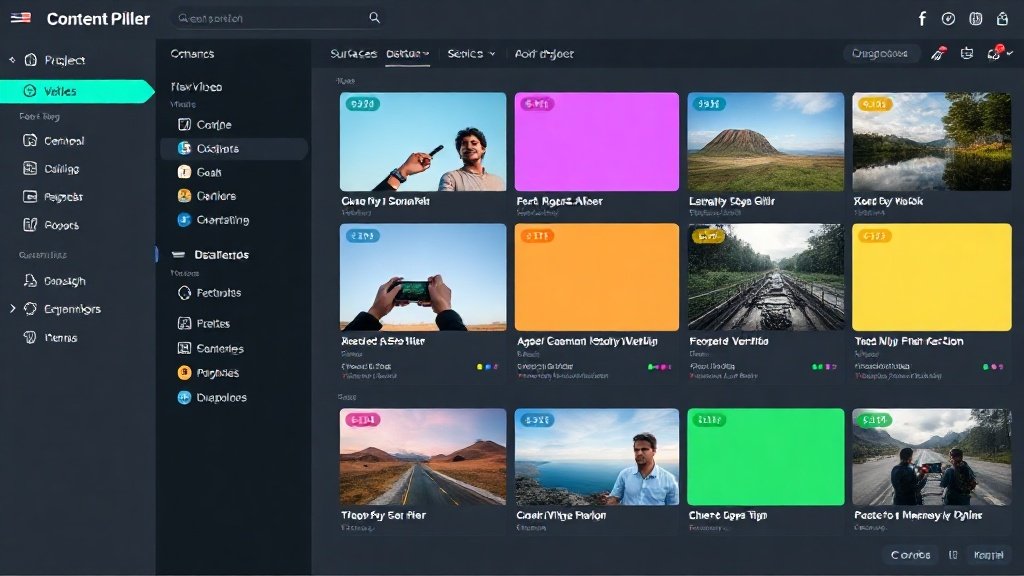
Step 1: Nail Down Your Content Pillars and Video Formats
Before you open Vidquence or write a script, define your content pillars—the core themes that matter to your brand or your audience. Most channels succeed with 3–5 pillars. For example:
- Educator brand: Quick how-tos, mythbusting, case studies
- DTC product brand: Product showcases, customer testimonials, UGC highlights, behind-the-scenes
- SaaS startup: Feature demos, integrations, customer wins, industry tips
For each pillar, decide on the ideal video format(s)—tutorials, fast “did you know?” clips, product promos, short reels… Vidquence offers specific workflows tailored to each type:
- Prompt to Video: Fast, narrated explainers or listicles from simple prompts or outlines
- Social Post to Video: Repurpose high-performing X, LinkedIn, or Instagram text posts into short-form video
- Product Video Ads: Cinematic carousel ads from a batch of product photos
- SaaS/Promo Videos: Walkthroughs or promo spots for software/web services
- Typography Videos: Bold kinetic text—great for quotes or snappy hooks
- Talking Head Videos: Clips of you (or a spokesperson) enhanced with captions, overlays, and cuts
Document your pillars and assign formats—this will be your production roadmap.
Example:
- Pillar 1: Social Proof (Instagram reviews, X testimonials) → Social Post to Video
- Pillar 2: Feature Highlights (product demo images) → Product Video Ads
- Pillar 3: Tips & Tricks (short-list scripts) → Prompt to Video
Step 2: Systematize Scripts, Outlines, & Inputs
Batch production crumbles without consistency. Take the time up front to file all the key texts and assets:
- Scripts/outlines: Write or adapt 6–10 short scripts or bullet outlines per format. For “tips” videos, plan catchy openers and clear step-by-steps.
- Social posts: Copy-paste top posts you’ll convert to video. Trim to punchy, on-screen length if needed.
- Product shots/screens: Organize your best photos by feature/use case.
Template tip: Keeping intros, outros, and calls to action consistent speeds editing and keeps your brand voice tight. You can swap in new info as needed week-to-week.

Step 3: Batch-Generate Draft Videos in Vidquence
Now, jump into Vidquence’s dashboard and select the right workflow for each video. Because Vidquence is built for multi-video production:
- Load up your assets and prompts in batches. For example, enter 5 scripts into Prompt to Video in one go, or select 8 product images to generate a themed carousel ad series.
- Preview and edit inline. Vidquence instantly generates video drafts, complete with narration, animated transitions, and branding. Make batch edits and see instant feedback—no exporting to other apps.
- Enable Auto Captions for accessibility and to boost rewind/engagement metrics (research shows videos with captions hold attention up to 40% longer, per TikTok Creative Center).
Vidquence’s unified dashboard means you can queue, edit, and manage video versions for an entire campaign, all in one place—no asset or version confusion.
Step 4: Polish, Brand & Standardize
High-volume video can’t mean low quality. Use batch review mode to check for:
- Brand consistency – double-check intros/outros and description fields
- Visuals – make sure images, colors, and overlays match your guidelines
- Audio – tweak AI voiceover options as needed for tone or accent
- Captions – ensure clarity and proper animation/timing
In Vidquence, tweaks to templates (like logo animations or main color) update across your whole batch instantly.

Step 5: Export, Schedule, and Automate Posting
Once your batch is finalized, use Vidquence’s export and auto-publish features to queue up releases. Pro workflow: stagger your batch (one video per day or platform), or schedule a campaign blast for product launches or special events.
Individual files are download-ready for any platform: Instagram, Reels, TikTok, YouTube Shorts, and more. And because Vidquence centralizes everything, you always have version control and analytics at your fingertips.
Key Batch Production Tips: What the Pros Do
- Work in weekly or monthly cycles. Reserve one block of time per week for video generation, editing, and scheduling.
- Repurpose everything. Your best posts and tutorials easily become 3–4 videos apiece—just switch the format and aspect ratio in Vidquence.
- Track results. After each batch, double down on pillars and formats that drive the best engagement and traffic.
FAQ: Batch Producing Social Media Videos with Vidquence
- How many videos can I produce at once in Vidquence?
There’s no strict batch limit—most efficient users create between 5–20 videos per session, quickly editing and exporting variations in a single dashboard. - Can Vidquence handle both short-form and talking-head formats?
Yes. Use Social Post to Video, Prompt to Video, Product Video Ads, or Typography for faceless/quick videos, and Talking Head Videos for footage of yourself (with automatic captions, B-roll, and jump cuts). - What if I want to update branding later?
Simply update your Vidquence brand kit and apply globally—the platform re-renders assets in your batch with the latest colors, logos, and fonts. - Do I need to record my own narrations?
No—AI voiceover is auto-generated from your text or script in each video workflow, with optional adjustments for style and accent.
Conclusion: Scale Content, Not Workload
Batch producing social media videos empowers you to hit all your platforms with consistent, high-quality content—without the mess of scattered tools or endless re-editing. Vidquence’s unified AI dashboard lets you move from idea to finished video, for any format, in minutes. Systematize your pillars, prep your assets, and let the platform do the bulk of the work, so you can focus on strategy and results.