

Captions can boost your social media videos’ watch time and engagement instantly—but manual captioning is slow, clunky, and lets mistakes slip through. Today’s AI-powered tools let you add captions to social media videos in minutes, not hours, helping you reach wider audiences and stand out on TikTok, YouTube Shorts, and beyond. Here’s exactly how to do it, with specific tools, polished workflows, and practical pro tips for every platform.
Why Add Captions to Social Media Videos?
Most TikTok, Instagram Reels, and YouTube Shorts are watched with the sound off—up to 85% of Facebook videos are viewed on mute. Without captions, your message might simply be skipped. But when you add captions to social media videos:
- Accessibility: You instantly include viewers who are deaf, hard-of-hearing, or in noisy environments.
- Increased engagement: Captioned videos can see up to 12% longer watch times and more shares, especially for bite-sized content.
- Clarity on small screens: Fast, on-screen text helps highlight names, terms, or key points in vertical videos.
The best part: what once took hours of typing and timing now takes seconds with the right AI tool.
Manual Captioning vs. AI Auto-Captioning: What’s Changed?
Previously, adding captions meant laboriously transcribing every word, aligning subtitles to the video timeline, and exporting the correct files—often for every language or platform.
With AI-powered caption generators, that workflow looks like this:
- Upload your video or paste a link.
- The AI analyzes audio and autogenerates timed captions.
- You edit the transcript, tweak style, export, or burn-in.
Examples of popular AI tools making this process seamless:
- CapCut: Free mobile and desktop app (from ByteDance, the parent company of TikTok) offers accurate AI auto-captioning, subtitle animation, and social-friendly fonts.
- Capsai: A web-based caption generator made for short-form video creators; supports English, Hindi, real-time edits, and smart export options.
- YouTube Studio: Provides automatic captioning for uploaded videos—great for YouTube and YouTube Shorts, with easy SRT export.
- OpusClip: Lets you upload a long video and outputs multiple social-ready clips, each with styled, AI-generated captions.
- MixCaptions: A dedicated mobile app for adding captions, with deep font, color, and layout customization.
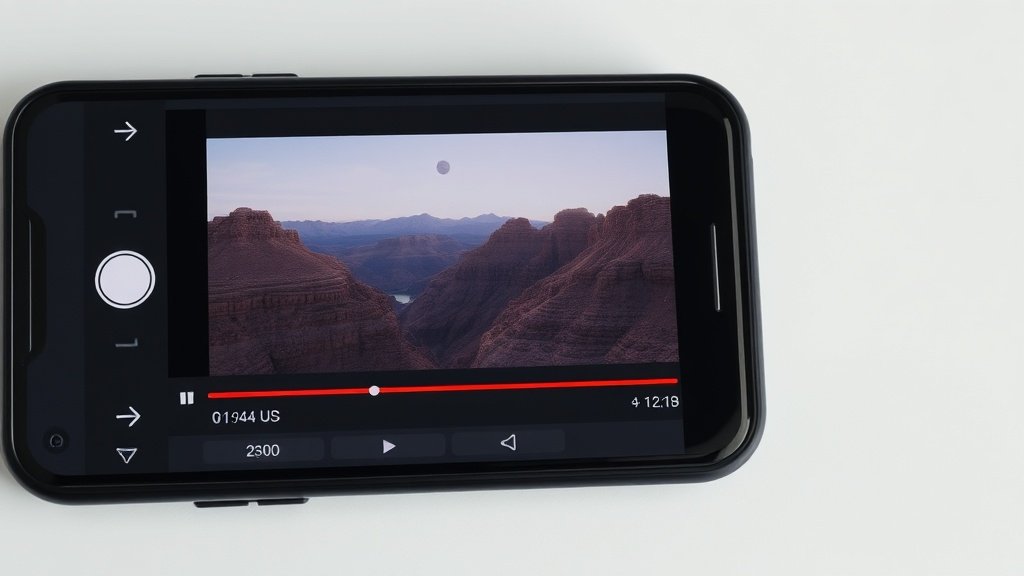
Step-By-Step: Adding Captions to Social Videos Using AI
Here’s how you can add captions to your social media videos quickly, with real-world examples:
1. Captioning with CapCut
- Open CapCut (desktop or mobile).
- Import your video: Tap ‘New Project’ and select your video. CapCut is ideal for both TikTok and Instagram Reels formats.
- Auto-caption: Tap ‘Text’ > ‘Auto Captions’. The AI listens to the audio and instantly creates timed captions.
- Edit or restyle: Fix any transcription errors, then use subtitle style menus to pick fonts, size, color, animations, and background to match your brand or platform.
- Export: Burn-in captions for upload, or save a caption file (like .SRT/.VTT) if you want separate subtitles.
Pro tip: CapCut’s subtitle presets mirror the bold, colorful on-screen text you see trending on viral TikToks.
2. Using Capsai’s Web-Based Workflow
- Go to Capsai.com.
- Upload your video or paste a link.
- AI generates captions: Edit transcript directly in the browser; use “smart punctuation” and glossary for brand names or slang.
- Choose output: Export captions as .SRT, .VTT (free, no watermarks), or burn them into the video for instant posting.
- Share instantly on TikTok, Reels, or Shorts.
Capsai makes it easy to reuse the same .SRT file for multiple platforms or languages. If you create content for global audiences (English, Hindi, Spanish, etc.), it’s hugely efficient.
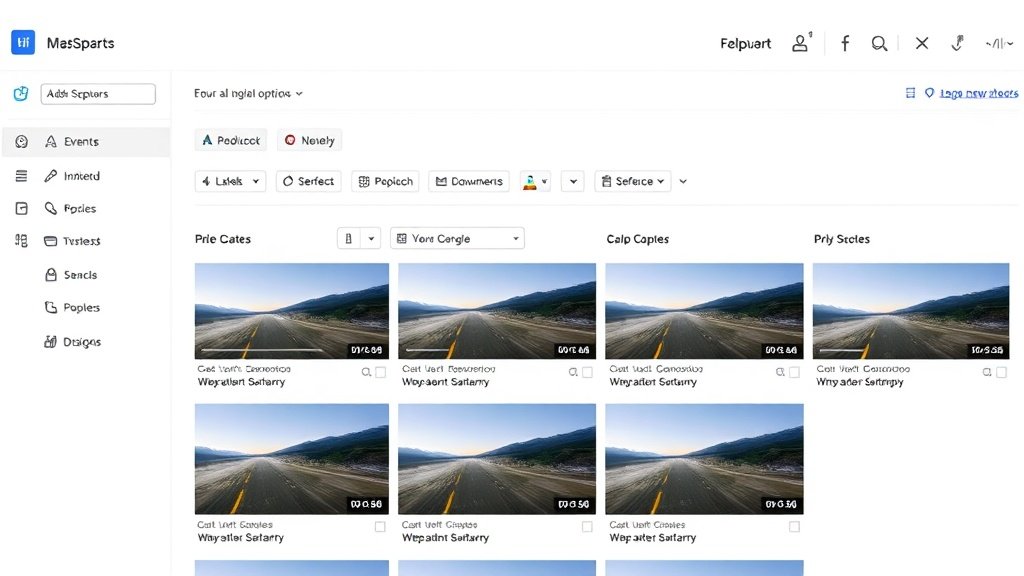
3. YouTube Studio’s Free Auto-Captioning
- Upload your video in YouTube Studio.
- After processing, YouTube auto-generates captions using their advanced speech recognition.
- Review and edit for accuracy. (YouTube is excellent at picking up global accents.)
- Export the captions as an .SRT file for repurposing elsewhere—ideal if you’re publishing the same short on TikTok or Instagram.
Note: If you only want burned-in captions for Shorts, you’ll need to re-import to an editor like CapCut or use Vidquence to overlay and style the text before posting elsewhere.
4. Combining Captioning and Video Repurposing
If you’re transforming long-form content (like a recorded podcast or webinar) into multiple short videos, tools such as OpusClip bundle AI captioning with clipping in one step:
- Upload your long video.
- AI detects engaging moments, clips them, and adds auto-generated, social-optimized captions to each output.
- Export to your vertical short-form platforms—no additional editing needed.
This means you can go from a 30-minute video to a week’s worth of TikTok or Shorts content—captioned and formatted—with just a couple of clicks.
How to Choose the Right Captioning Workflow
Here’s a quick guide to pick the best approach for your needs:
- Edits on Mobile: CapCut or MixCaptions are your go-to, with instant sharing to TikTok/Instagram.
- Browser/Cloud Workflow: Capsai or OpusClip streamline batch processing, translation, and export.
- Native YouTube Publishing: Use YouTube Studio for the highest speech recognition accuracy.
- Multi-Platform Publishing: Combine .SRT/.VTT file export from Capsai or Vidquence to reuse captions across platforms, saving time.
AI captioning cuts the time you spend on subtitles by 80-90% compared to manual work, based on user-case studies and thousands of creator hours saved per month.
Pro Tips to Make Your Captions Stand Out
- Style for thumbnail impact: Bold, high-contrast fonts and split-color captions grab attention in fast-scrolling feeds.
- Keep captions concise: Edit lines to be punchy and not overcrowd the video—max two short lines at a time.
- Use emojis, effects, or highlights: Many tools (CapCut, MixCaptions, Vidquence) let you add subtle animation or pop to keywords.
- Test on multiple devices: Preview your video on different screen sizes to ensure text is readable everywhere.
- Always check for errors: Even AI misses names, places, or slang—fix before publishing to keep credibility high.
How Vidquence Fits Into AI Captioning
Platforms like Vidquence build AI captioning right into video creation. Instead of juggling multiple apps, you can script, generate, voice, and auto-caption social-ready vertical videos—all on one platform. Vidquence also supports caption customization and auto-publishing so creators and marketers spend less time switching tools.
Frequently Asked Questions
Q: Will AI captions be 100% accurate?
A: No—AI is highly accurate for clear speech, but always review your captions for brand names, technical terms, and slang to avoid embarrassing errors.
Q: Can I add captions to videos in other languages?
A: Yes—tools like Capsai support multiple languages, including Hindi and Spanish. Some platforms also offer translation, but review nuance carefully.
Q: Should I upload subtitle files or burn-in captions?
A: For short-form (TikTok, Reels, Shorts), burn-in is preferred since many platforms don’t show subtitle files. For long-form (YouTube), also upload SRT/VTT for accessibility.
Conclusion
If you want to add captions to social media videos in minutes, AI tools like CapCut, Capsai, and OpusClip make captioning effortless—no typing or tedious syncing. Your videos will reach more people, drive more engagement, and deliver your message whether sound is on or off. Focus on creating, not captioning—the AI will handle the rest.